
Getting a new computer is exciting, right up until you remember how much is sitting on the old one. Years of family photos, tax records, and that spreadsheet you swear you'll need someday all have to make the trip. It's a very normal worry, and the good news is that moving your files safely is completely doable, even if you don't think of yourself as a tech person.
In this guide, we'll walk through how to plan the move, pick a transfer method that fits your situation, and check everything before the old computer gets wiped. We'll also point out when it makes sense to bring in help, like a file transfer service in Portland that handles the heavy lifting for you. No rush, just one step at a time.
Table of Contents
- Quick Takeaways
- Before You Move Anything
- Choosing the Right Transfer Method
- A Step-by-Step File Transfer Process
- Protecting Your Files During the Move
- Moving Between PCs and Macs
- When to Bring in a File Transfer Service
- Common Mistakes to Avoid
- Frequently Asked Questions
- References
Quick Takeaways
| Key Insight | Explanation |
|---|---|
| Sort before you copy | Check Downloads, Desktop, and Pictures for old installers and duplicates so you only move what you truly need. |
| Back up first | Keep at least one full copy on a separate drive or cloud account until the new computer has proven itself. |
| Match the method to the size | Cloud storage suits documents and smaller photo folders, while a external drive usually handles large photo and video libraries better. |
| Move in batches | Transfer documents, then photos, then music and video, so any problem shows up in a small, easy to find place. |
| Check before you wipe | Open a sample of files from every folder on the new computer before erasing the old one. |
| Protect sensitive files | Use encryption or password protection for tax, medical, and client files, and avoid open public links for them. |
| Ask for help when stakes are high | A failing drive or a business deadline is a good reason to bring in a local technician rather than guess. |
How do I request a quote or book a visit?
To schedule a visit, call (503) 850-0200 or request an appointment online.
Before You Move Anything
Starting with a plan saves you from the most common frustration of a computer move, which is realizing halfway through that you copied the wrong folder or missed an entire drive. A little preparation up front makes the rest of the job much calmer. Think of it like packing a moving box: you want to know what's inside before you tape it shut.
Sort what you actually need
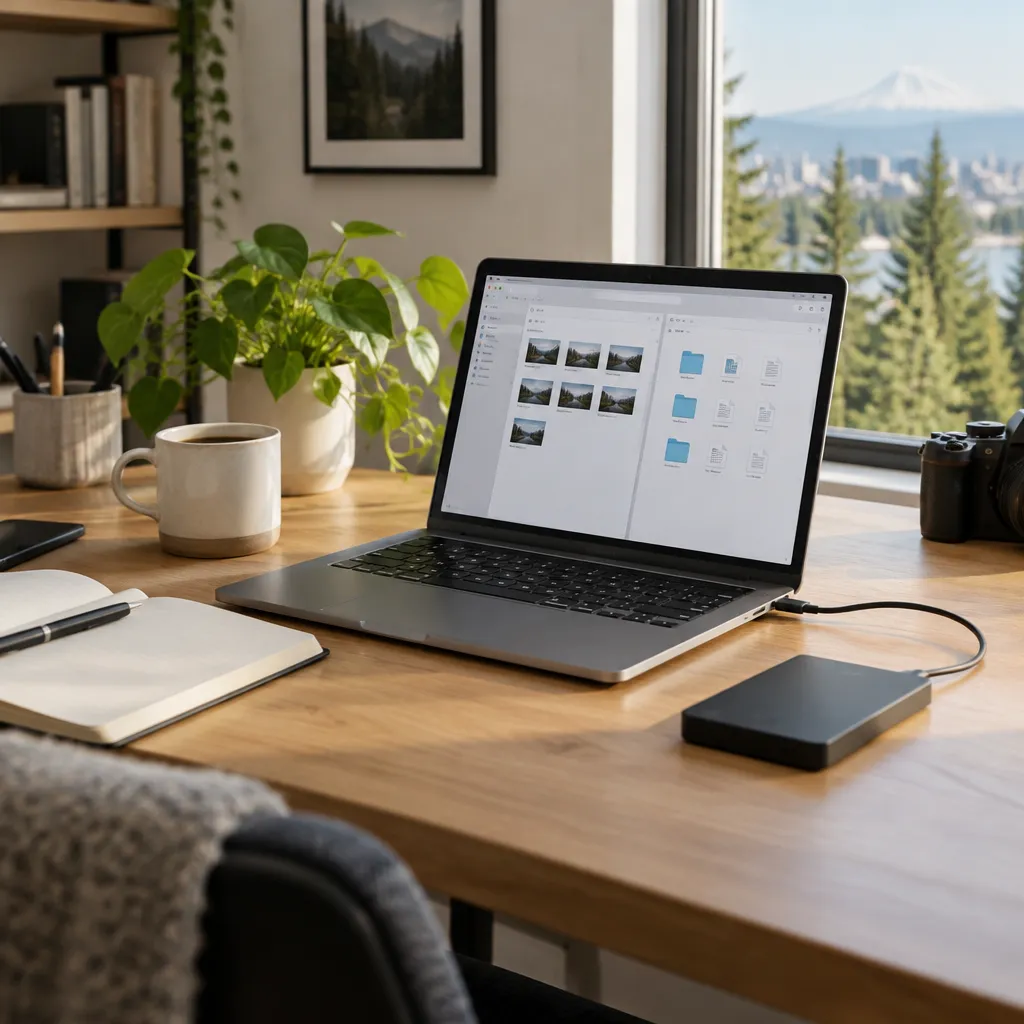
Begin by walking through your old computer's main folders, usually Documents, Desktop, Pictures, Music, and Downloads. Many people discover that Downloads holds old installers, duplicate photos, and forgotten PDFs they never plan to open again. Skipping that clutter means a faster transfer and less to check at the end.
Next, write down the handful of items that truly matter. That might be family photos, business invoices, tax records, or a folder of recipes someone typed up years ago. Keep this list nearby, because it becomes your checklist once the new computer is ready.
Make a backup before anything moves
Before you copy a single file, make at least one full backup on a separate drive or cloud account. A transfer can go wrong when a cable disconnects, a drive fails, or a folder gets overwritten by mistake. With a backup in place, you're never betting everything on one attempt.
Pro tip: If your old drive is making clicking sounds or running unusually slow, back up the most important files first. A failing drive can get worse during a long copy job.
Choosing the Right Transfer Method
There isn't one perfect way to move files, and that's actually good news. Most people end up using a mix of methods depending on how large their folders are and how much time they have. HP's step-by-step guide to moving files between PCs lists six approaches, and the three below are the ones that come up most often in home and small office moves.
Cloud storage for everyday documents
Cloud services such as Google Drive, Microsoft OneDrive, and Dropbox work well for documents, spreadsheets, and smaller photo folders. You upload on the old computer, then download on the new one, and nothing needs to be plugged in. The main limits are upload speed and storage space, so a huge photo library can take far longer than you'd expect.
Very large files can also be sent through web-based transfer tools that don't require an account. These are handy for a one-time send, but they aren't meant to be a long-term home for your files.
External drives for large libraries
An external hard drive or USB flash drive is often the most practical way to move a big photo or video collection. It doesn't depend on your internet connection, and you can see exactly what's on the drive before you plug it into the new machine. Format the drive in a way the new computer can read, and eject it safely every time so nothing gets corrupted mid-copy.
Built-in migration tools for Mac-to-Mac moves
If you're moving from one Mac to another, Apple's Migration Assistant can copy your files, apps, and settings during the setup process. It's a strong option when you want the new Mac to feel familiar right away. It's built for Mac-to-Mac moves, so PC-to-Mac transfers need a different approach.
| Method | Best for | Watch out for |
|---|---|---|
| Cloud storage (Google Drive, Microsoft OneDrive, Dropbox) | Documents, spreadsheets, and smaller photo folders | Slow uploads on a limited connection and storage limits on free plans |
| External hard drive or USB flash drive | Large photo, music, and video libraries | Drives can fail, so keep a second copy and always eject safely |
| Mac Migration Assistant | Mac-to-Mac moves during initial setup | Only works between Macs, so it doesn't help with PC-to-Mac moves |
A Step-by-Step File Transfer Process
Once you've picked a method, the actual move goes much more smoothly if you follow a consistent order. Work folder by folder rather than dragging your entire user profile across at once. Smaller batches make it easy to spot problems early.
Copy in batches, not all at once
Start with your documents, then move on to photos, then music and videos. Give each batch time to finish before you start the next one. If a copy stops partway through, you'll know exactly which folder to check.
Keep the original folder structure intact whenever you can. Folders named by year or project make it much easier to find things later, and they make your checklist easier to follow.
Verify the copies before you wipe anything
Open a sample of files from every folder on the new computer. Play a video, open a spreadsheet, and view a few photos at full size. Quick spot checks catch damaged files while the old computer is still available as a fallback.
A transfer isn't finished when the progress bar reaches 100 percent. It's finished when you've opened the files on the new computer and seen that they work.
Only after you've confirmed the important files on the new machine should you think about erasing the old one. Give yourself a few days of normal use before you make that call, since some files only get noticed when you go looking for them.
Pro tip: Keep a simple written list of what you moved and where it landed. If something goes missing later, the list tells you exactly where to look.
How do I request a quote or book a visit?
To schedule a visit, call (503) 850-0200 or request an appointment online.
Protecting Your Files During the Move
Moving files feels routine, but your personal documents and financial records deserve the same care you'd give a locked filing cabinet. Data that travels over the internet or sits on a shared drive can be exposed if you aren't careful. The good news is that a few simple habits go a long way.

Use encryption when files leave your hands
Encryption scrambles data so it can't be read without the right key. Many cloud services encrypt files as they travel and while they're stored, and many external drives offer password protection or built-in encryption. Turning on those options takes a few minutes and is worth it for anything sensitive.
Be careful with methods that rely on public links. Anyone who gets hold of the link may be able to open the file, so avoid those routes for tax returns, medical records, or client data.
Lock down the account that holds your files
Your cloud account is now the key to your files, so its password matters a lot. Pick a long passphrase you don't reuse anywhere else, and turn on two-step verification if the service offers it. Our post on why changing your online passwords matters walks through how to tighten those accounts.
Keep sensitive files off shared computers
If you're working on a computer that other people use, or a borrowed one, don't leave files sitting in a shared download folder. Delete temporary copies once they've reached their destination. Clean handling is simple to do, but it's easy to forget in the middle of a busy move.
Moving Between PCs and Macs
Crossing from Windows to macOS, or the other way around, adds a few wrinkles. File names, system settings, and some app data don't always carry over cleanly. Knowing where those differences show up keeps surprises to a minimum.
Moving from a PC to a Mac
Plan on moving your documents, photos, and music, then reinstalling your programs on the Mac. Many Windows-only programs won't run on macOS at all, so check each one before you assume it will follow you. Photo libraries deserve extra attention, since their structure can change when they're imported into a new app.
Moving from one Mac to another
Mac-to-Mac moves are usually the smoothest, especially when you use Migration Assistant during setup. It can bring over your user accounts, apps, and settings, so the new Mac feels familiar right away. Keep the old Mac powered on and nearby until you're sure everything you need has arrived.
Take a moment to double-check your Desktop and Downloads folders once the move is done. Those are the places where forgotten files tend to hide, and they're easy to overlook when the new computer is already working well.
When to Bring in a File Transfer Service
Doing it yourself is perfectly reasonable for a laptop with a modest amount of files and an afternoon to spare. When the stakes rise, like a failing drive, a stack of irreplaceable photos, or a small business that can't afford downtime, a professional can keep the move on track. At Steve's PC Repair, we'd rather help you choose the right path than push more than you need.
Signs a DIY move is not worth the risk
Watch for a few warning signs: the old drive has slowed down or throws errors, the folders are enormous, or you're moving a business's files on a deadline. If you've noticed any of the symptoms in our article on warning signs your hard drive is about to fail, protect those files before you do anything else.
Another good reason to get help is when the new computer needs more than a simple copy. If you're moving to a faster drive, an SSD upgrade may be part of the plan, and our post on making your old computer your new computer explains how that can work.
What a local file transfer service covers
Our PC upgrade and file transfer services help move your files and settings to the new computer. We also offer SSD drive cloning and replacement, along with remote assistance for simpler moves. On-site service is handy when you'd rather have someone sitting with you while the setup gets finished.
We keep the approach straightforward. You'll get the most cost-efficient choice that makes sense for you, and we use remote support where it can save you time and money. Our prices are straightforward and affordable, so you'll know what to expect before the job starts.
Common Mistakes to Avoid
Most failed transfers come down to a handful of small oversights. None of them are hard to avoid once you know what to look for. Here are the ones we see most often.
Forgetting hidden folders and app data
Copying your Documents folder feels like the whole job, but it often leaves behind browser bookmarks, email archives, and program settings. Those live in other locations on your computer. Check your email program and browser for their own export or sync options before you wipe anything.
Treating cloud sync as a backup
Syncing is convenient, but it isn't always a safety net. If a file gets deleted or damaged on one device, that change can sync everywhere. Keep at least one separate copy until the new computer has proven itself.
Skipping the first-week check
Some problems only show up when you need a file, like a photo that won't open or a spreadsheet missing its formulas. Spend a few minutes each day during the first week opening the files you use most. You'll catch issues while the old computer is still on hand.
Pro tip: Before you hand off or recycle the old computer, run a complete virus scan and clear personal data you no longer need. Our article on why you need professional virus removal explains why an old machine can carry hidden problems.
Frequently Asked Questions
What is the safest way to transfer files to a new computer?
The safest approach combines a full backup on a separate drive, an encrypted or password-protected transfer method, and a check of the files on the new computer before you wipe the old one. Using two methods at once, such as cloud storage for documents and an external drive for photos, adds another layer of protection.
How long does a computer file transfer usually take?
It depends on how much data you're moving and how you're moving it. A few folders of documents can move in minutes, while a large photo library over a slow internet connection can take much longer. Breaking the job into batches makes timing easier to predict.
Can I transfer files from a PC to a Mac?
Yes, you can move documents, photos, and music from a PC to a Mac using an external drive or cloud storage. Programs usually need to be installed again on the Mac, and some Windows-only software won't run on macOS. Check each program before you assume it will work.
Should I wipe my old computer after the transfer?
Only after you've opened your important files on the new computer and confirmed they work. Keep the old computer, or at least one full backup, until you're comfortable with the result. Wiping too early is one mistake that can't be undone.
Do you offer file transfer services in Portland?
Yes. Steve's PC Repair offers PC upgrade and file transfer services, and we serve Portland, OR, Gresham, OR, and the wider Portland Metro Area. Call (503) 850-0200 or request a quote to talk through your situation.
Need Help With Your Computer?
I’m Steve, owner of Steve’s PC Repair. Whether your computer is running slowly, your printer won’t connect, or you need help setting up a new computer, I can help. I provide onsite service for homes and small businesses across the Portland metro area. Remote support is also available.
What was the trickiest part of your last computer move, and how did you get through it?
