
Your computer slows to a crawl, shuts off without warning, or throws an error you have never seen before. Maybe you are juggling a deadline, or your family photos sit on a drive that makes a strange clicking sound. Either way, the first question is usually the same: what is actually wrong? That is exactly what good computer diagnostics in Portland should answer, before anyone starts swapping parts or reinstalling software. In this guide, we will walk through what a professional diagnostic includes, how the visit usually unfolds, and what you should expect along the way. No rush, and no jargon.
Table of Contents
- Quick Takeaways
- What a Computer Diagnostic Actually Covers
- The Step-by-Step Diagnostic Visit
- Laptop Diagnostics for Portland Homes
- Desktop and Mac Diagnostics
- Diagnostics for Small Business Workstations
- Diagnostic Options Compared
- What to Expect From Pricing
- Frequently Asked Questions
- References
Quick Takeaways
| Key Insight | Explanation |
|---|---|
| A symptom is a clue, not a diagnosis | A slow PC might have a failing drive, malware, or too many startup programs. A good diagnostic finds the cause before recommending a fix. |
| Write down when the problem happens | Note whether it started after a storm, a software update, or a bump to the laptop. Those details narrow the search quickly. |
| Hardware and software get checked separately | Drives, memory, and temperatures are tested alongside startup programs, drivers, and security scans. |
| Ask for a plain-language result | You should know what is wrong, how urgent it is, and which fix is the most cost-efficient for your situation. |
| Back up before testing a failing drive | A clicking or disappearing drive can get worse during repeated testing, so protect your files first. |
| Remote checks can save a trip | Many software, settings, and security problems can be diagnosed remotely, which cuts down on unnecessary work. |
What a Computer Diagnostic Actually Covers
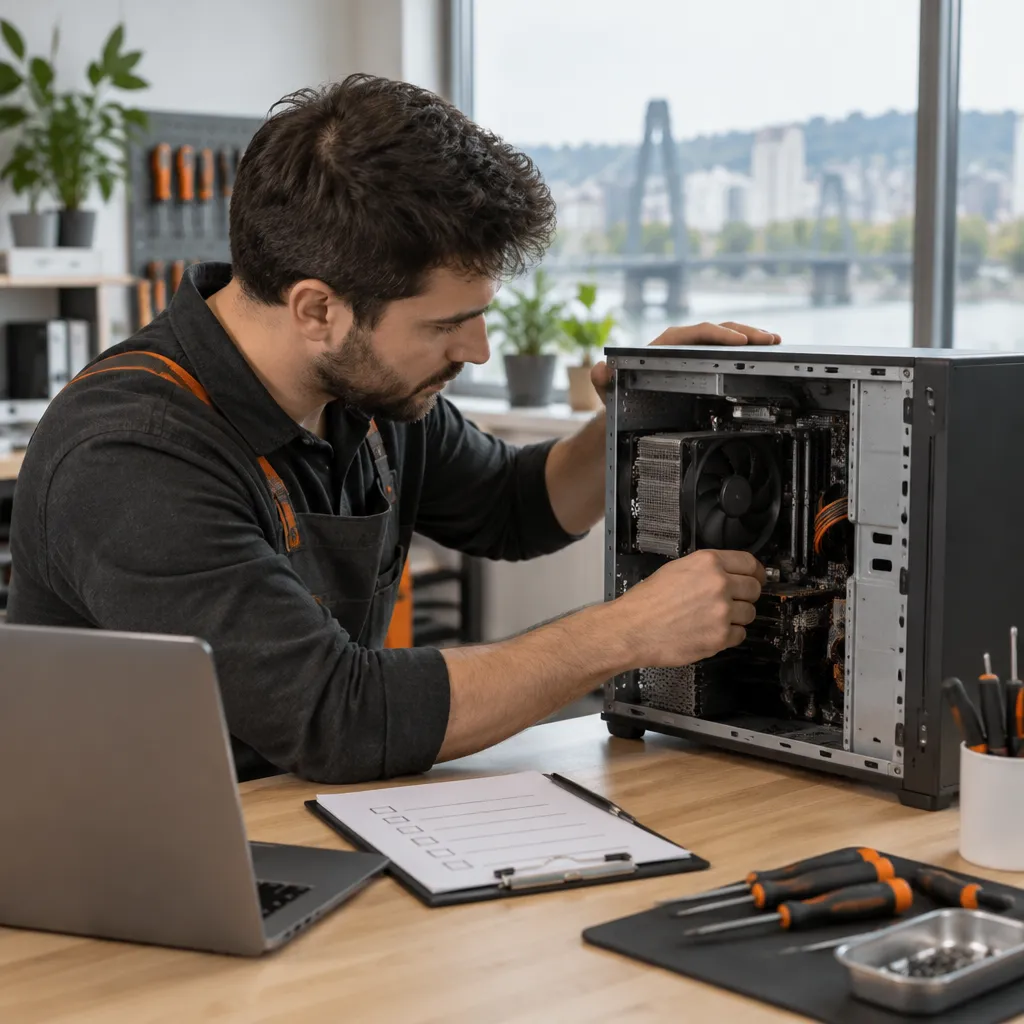
A computer diagnostic is a structured check that answers one question: what is causing the problem you are seeing? Think of it as a checkup for your machine, where the goal is to find the cause before anyone recommends a treatment. Done well, it keeps you from paying for a new power supply when the real culprit is a bad driver or a browser full of unwanted extensions.
Symptom review comes first
Every good diagnostic starts with a conversation. We ask when the problem started, whether anything changed beforehand, and how often it happens. A timeline is often the fastest clue we have. A computer that started freezing right after a power outage points toward power or hardware, while one that slowed down over several months usually points toward software buildup.
Bring along any error messages, even the ones that seem random. Write them down or take a photo with your phone. Those small details help narrow the search before we ever touch the machine.
Hardware checks
Hardware testing looks at the parts that do the heavy lifting. That includes the hard drive or SSD, system memory, cooling fans, internal temperatures, and battery health on laptops. Drive tests can reveal read errors or slow sectors, while memory tests can catch the intermittent crashes that seem to come out of nowhere.
Power delivery and the motherboard get a look when the symptoms point that way. These checks take time, so they are only worth running when the evidence justifies them. Thorough is good, but wasteful is not.
Software and security checks
Software checks review operating system errors, driver conflicts, startup programs, failed updates, and application crashes. Many slowdowns that feel like a hardware problem are really too many programs launching at boot. A quick review of the startup list often reveals the culprit in minutes.
Security checks look for malware, browser hijacking, and suspicious processes running in the background. If you suspect an infection, our guide on why professional virus removal matters explains why a thorough cleanup is worth the effort.
The Step-by-Step Diagnostic Visit
Knowing the order of a diagnostic helps you feel more at ease about what is happening to your computer. We like to move from the simplest checks to the more involved ones, so you are not paying for tests that do not matter to your problem. Nothing gets done without a reason.
Starting with the story
Before any tool gets opened, we talk through the symptoms and how you use the computer. A home user checking email and streaming shows has different needs than a bookkeeper running accounting software. That context shapes which checks come first.
Testing in a sensible order
We usually start with quick checks, such as reviewing error logs, startup programs, and free storage space. Heavier tests, like full drive scans or extended memory tests, come next if the early clues point that way. The order matters, because a quick check can rule out a costly repair before it ever gets scheduled.
Some issues can be checked remotely, which often means less time on your side. Remote support is especially useful for software and settings problems, so we often offer it as a first option.
A symptom is a clue, not a diagnosis. The cheapest fix is usually the one that follows the evidence instead of the first guess.
Getting a clear written result
At the end of a diagnostic, you should know three things: what is wrong, how urgent it is, and what your options are. Some findings can wait a few weeks, while a failing drive needs attention right away. We want you to leave with a clear picture, not a vague list of tests.
Pro tip: Before you bring in a laptop or desktop, copy your most important files to a separate drive or a cloud account. This protects your data if a failing component needs extra testing.
Laptop Diagnostics for Portland Homes
Laptops live a harder life than desktops. They get carried to coffee shops, stuffed into bags, and set on blankets that block the vents. That is why a laptop diagnostic checks a few areas that a desktop check might skip. The good news is that many of these problems are easier to fix once you know what to look for.
Battery and power problems
A laptop that shuts down while still showing charge, or dies the moment you unplug it, often has a worn battery. Battery health can be checked directly, and that helps separate a tired battery from a charger or power jack problem. If the battery is the issue, our article on when it is time to replace your laptop battery covers the signs to watch for.
Heat and fan airflow
Overheating is one of the most common laptop complaints we hear about. A diagnostic checks temperatures under load, the health of the cooling fan, and whether dust has built up in the vents. A laptop that runs hot and loud may need cleaning and fan service soon, before the heat starts wearing down other parts.
Heat problems often look like random crashes or sudden slowdowns. Temperature monitoring software can show whether the processor or graphics chip runs hot under load, and one community forum discussion on monitoring tools walks through how those readings are typically read. Once cooling is restored, the slowdowns often stop, which tells us heat was the real issue.
Screens, keyboards, and ports
Physical damage is easy to overlook. A diagnostic checks whether the screen displays correctly, whether keys respond, and whether USB and charging ports make a solid connection. A loose port can look exactly like a software glitch, so it is worth testing before blaming the operating system.
Laptop internals are tight, and opening them takes specialized tools. Small magnetic screwdrivers, torx bits, and plastic prying tools are the usual kit, as a community forum thread on laptop repair equipment describes. Trying to open a laptop without the right tools can cause more damage, so leave internal work to a professional.
Pro tip: If your laptop gets hot while sitting on a bed or couch, try using it on a hard, flat surface for a day. If the slowdowns ease up, airflow may be part of the problem.
Desktop and Mac Diagnostics
We work on both PCs and Macs, and a diagnostic follows the same logic on either one. The questions, the order of checks, and the goal stay consistent, even though the tools and settings differ between platforms. Whatever machine you have, the goal is to find the real cause, not just the most visible symptom.

Desktop towers and storage
Desktop diagnostics often include an internal look at the case, checking for dust, loose cables, and the condition of the fans. Storage checks matter just as much. A clicking drive or one that suddenly disappears from the system can signal failure, and our guide to warning signs your hard drive is about to fail explains what to watch for.
When a drive looks unhealthy, the priority shifts to protecting your files. Repeated testing can make a weak drive worse, so we back up what matters before going deeper.
Macs get the same care
Mac diagnostics focus on the same core questions: is the storage healthy, is memory holding up, are startup items slowing things down, and is anything suspicious running in the background. A Mac that feels sluggish after a major update often has a background process or a crowded startup disk to blame.
Remote diagnostics where they make sense
Remote assistance can handle many software, settings, and network questions without a visit. That saves time and keeps the focus on your actual problem. If the diagnosis shows the machine needs hands-on work, such as a drive swap, we will say so plainly before anything is changed.
Diagnostics for Small Business Workstations
For a small business in the Portland Metro Area, one slow workstation can turn into a day of lost productivity. The diagnostic matters even more here, because you need to know whether the problem stays on one machine or points to something shared across the office. Our goal is to keep your team working, with honest answers about cost and urgency.
One workstation or a wider pattern
Sometimes the computer is fine, and the complaint comes from something around it. A shared drive that will not map, an email sync error, or unstable Wi-Fi can all look like a broken computer. During a diagnostic, we check whether other machines show the same symptoms, since that comparison often reveals the real source.
When several systems share the same issue, fixing one machine at a time wastes money. A pattern-based diagnosis tells you where to look first, so repairs go where they will actually help.
Protecting business data first
Data comes before everything else. If a workstation shows signs of drive failure or a malware infection, the first step is securing the files your team depends on. After that, we can test and repair without risking records you cannot afford to lose.
Owners often ask whether a repair is worth doing on an older machine. We give honest answers, and sometimes that answer is a short-term fix while you plan a replacement.
Planning a visit around your workday
Small offices rarely have time for a long shutdown. We try to build the visit around your schedule. Where a remote session can handle part of the work, the rest of the day can keep moving while we focus on what needs hands-on attention.
Diagnostic Options Compared
Not every situation calls for the same approach. Some people start with a few checks at home, others prefer a remote session, and some need a full on-site visit. Here is how those options compare, so you can pick the right starting point.
| Approach | What It Covers | Best Used For |
|---|---|---|
| Self-check at home | Free storage space, startup programs, and recent updates | Minor slowdowns when you are comfortable reading system settings |
| Remote diagnostic session | Software, settings, security scans, and some network issues | Problems that do not require opening the computer |
| On-site professional diagnostic | Hardware tests, internal inspection, drive and memory checks, and a written result | Crashes, overheating, failing drives, and business workstations |
Checking the basics yourself
A few simple checks cost you nothing but a few minutes. Look at how full your drive is, count the programs that launch at startup, and note whether the slowdown began after a particular update. Those notes help whoever looks at the machine later, even if you decide to bring it in.
When a remote session fits
Remote support works well when the problem lives in software or settings. Slow browsers, failed updates, and security concerns often fit this category. Because no trip is involved, it is often the most cost-efficient first step, and you can keep working while we look.
When an on-site visit makes sense
If the symptoms suggest a hardware problem, such as clicking drives, overheating, or random shutdowns, an on-site visit lets us test the physical parts directly. This is also the right path when a computer will not start. Our guide on what to do when your computer won't turn on can help you prepare.
What to Expect From Pricing
Nobody enjoys signing off on a bill they did not see coming. That is why we want the cost picture to be clear before any real work begins. Our pricing is straightforward and affordable, with no pricey surprises, so you know what to expect before the job starts.

Straight-forward pricing before the work starts
Our diagnostics are priced upfront, so you can decide what to do with the information. We also look for the most cost-efficient fix that makes sense for your computer. Whenever remote support can solve the problem, we use it to help keep your costs down.
Repair, upgrade, or replace
Sometimes the honest answer is that an older computer is not worth repairing. A diagnostic lets us compare the cost of fixing the current machine with the benefit of upgrading, such as adding an SSD upgrade, or replacing the whole system. We will tell you what makes sense, even if that means spending less with us.
Getting started with a diagnostic
Start by calling (503) 850-0200 or using the Free Quote button on our website. Describe the symptoms, the make and age of the computer, and any recent changes. If you are unsure whether it is time for maintenance, our article on whether your computer is due for a tune-up is a helpful place to start.
Pro tip: Write down your symptoms before you call, including when they happen and what you were doing. A two-minute note can shorten the first conversation.
Frequently Asked Questions
How long does a computer diagnostic take?
It depends on the symptoms. A software or settings check can often be started remotely, while hardware testing takes longer. When you call, we can give you a realistic sense of the timing for your situation.
Do I have to approve a repair after the diagnostic?
No. The purpose of a diagnostic is to give you clear information first. You decide what happens next, and you will know what to expect before any work begins.
Can you diagnose both a PC and a Mac?
Yes. We work on both PCs and Macs, including laptops. The same core questions apply to each, even though the tools and settings differ.
Should I back up my files before a diagnostic?
Yes, especially if your drive is clicking, running slowly, or disappearing from the system. Copying your important files to a separate location first protects them while the testing takes place.
Can a computer diagnostic be done remotely?
Some can. Software, settings, security, and some network problems often can be checked remotely. Problems that involve physical parts, like a failing drive or overheating, usually need an on-site visit.
Do you serve areas outside Portland?
We serve Portland, OR, Gresham, OR, and the Portland Metro Area. If you are not sure whether we cover your location, call us at (503) 850-0200 and we will let you know.
Contact us at 503-850-0200 for more information.
We would love to hear about your experience, so tell us what symptoms your computer has been showing and what happened after you had it checked.
