
Most Portland computer owners think about a data backup only after a hard drive clicks or a laptop refuses to start. By then, the family photos, tax records, and work files on that machine may already be gone. Fall is the best time to fix that. The holidays are still ahead, your routine is stable, and a backup set up in October or November is already protecting you when winter storms, travel, and busy seasons arrive. This guide explains why the season matters, which files deserve protection first, and how to choose between an external drive and cloud storage so your data backup Portland setup actually works when you need it.
Table of Contents
- Quick Takeaways
- Why Fall Is the Best Time to Back Up Your Data
- What Actually Needs Backing Up
- Local, Cloud, and Hybrid Backup Compared
- Setting Up an External Drive Backup at Home
- Cloud Backup for Home Computers
- Common Backup Mistakes We See in Portland Homes and Offices
- Testing Your Backup Before Winter Arrives
- Frequently Asked Questions
- References
Quick Takeaways
Key Insight
Explanation
Set up backups before the holiday rush
Laptops travel more in November and December, and a backup configured in a quiet week beats one rushed the night before a flight.
Keep two copies in two places
One copy on an external drive at home and one in cloud storage protects you from a failed drive, theft, fire, and a single bad sync.
Protect irreplaceable files first
Photos, tax records, and business documents matter more than installed programs, which you can reinstall from their original sources.
A drive that stays unplugged is not a backup
Schedule automatic backups weekly and connect the external drive on a fixed day so the copy never falls months behind.
Test a restore, not just the backup
A completed backup job only proves the software ran. Open a few restored files from the copy every quarter to confirm they work.
Replace a drive showing warning signs
Clicking noises, repeated freezes, and slow file reads mean the drive may be failing, so back up everything before you attempt any repair.
Why Fall Is the Best Time to Back Up Your Data
Fall gives you a window that the rest of the year rarely offers. Routines are settled, the computer is not packed for a trip, and nobody is racing a deadline. A backup you set up now runs quietly for months, so it is already in place when the season gets messy.
Winter brings its own problems. Storms can knock out power across parts of the Portland Metro Area, and a computer that shuts down in the middle of a save can corrupt the very file you were working on. Holiday travel adds theft and drop risks, because laptops end up in cars, airports, and hotel rooms.
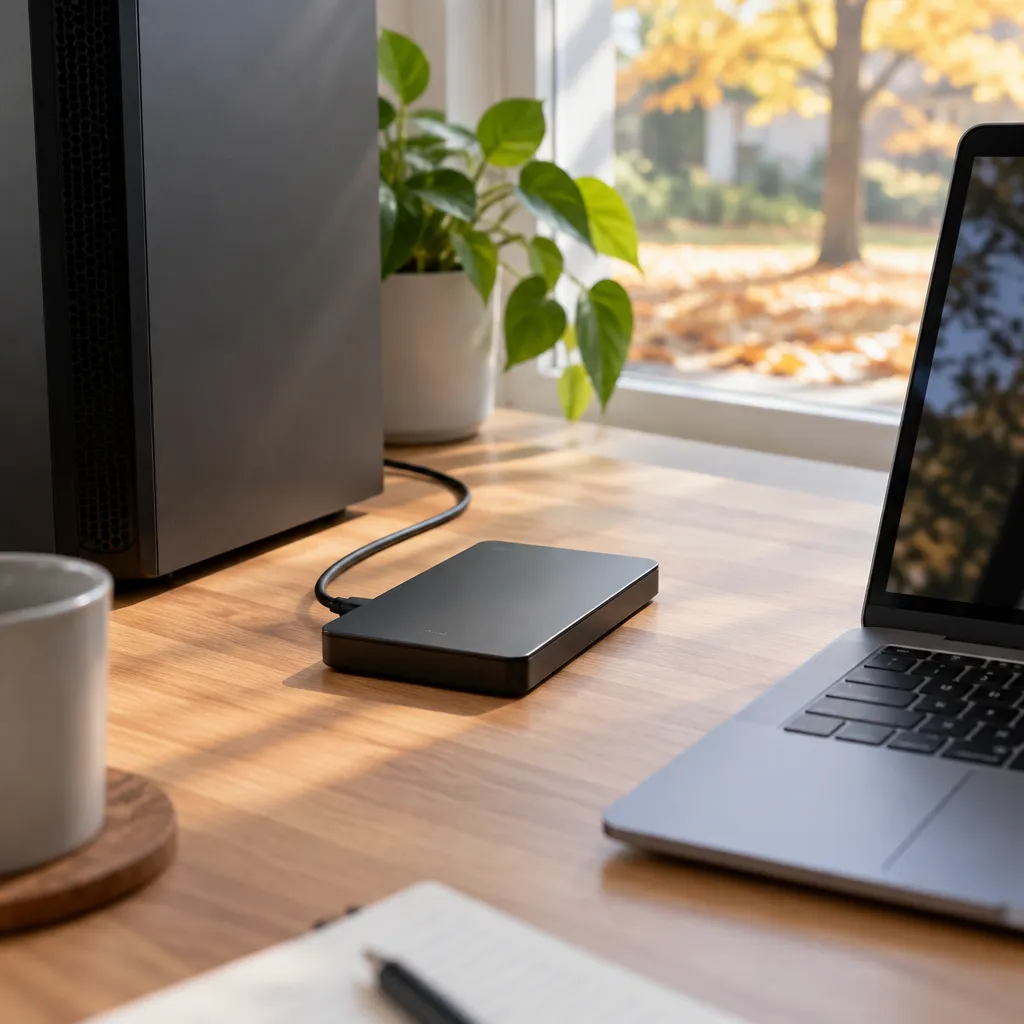
Setting up a backup before the holiday rush
In practice, the most common failure is not a missing tool. It is a backup someone meant to set up in December and never got around to. Once the holidays arrive, you are busy with guests, shopping, and travel, and your computer goes unattended for days at a time.
Setting up a backup in a quiet week takes a short sitting for most home machines. You choose a destination, select the folders that matter, and let the first full copy finish while you do something else. The first copy is always the longest, so starting early means it is complete long before you need it.
Using the season as a maintenance checkpoint
Fall is also a good time to pair your backup with a general health check. Clearing out old downloads, uninstalling software you no longer use, and confirming your operating system is current all make the backup smaller and more reliable. If your machine has been slowing down, our guide on whether your computer is due for a tune-up explains the signs to look for.
Pro tip: Set a recurring calendar reminder for the first weekend of each season to check that the backup ran and that the drive is still connected. Five minutes of checking beats discovering a six-month gap during a crisis.
What Actually Needs Backing Up
Most people back up everything and then wonder why the process takes days. A smarter approach is to rank your data by how hard it would be to replace. Start with what you cannot get back from anywhere else, then add the things that are merely inconvenient to lose.
Files you cannot replace
Family photos and videos sit at the top of the list for most of our Portland customers. Phones often sync them to the cloud, but many people keep the only copy of older scanned pictures and home videos on an old laptop. Tax returns, receipts, scanned insurance papers, and home purchase documents belong in the same category.
For small business owners, the list includes accounting files, customer records, invoices, and project folders. A bookkeeping file that has been quietly missing for three months is far harder to rebuild than a lost word processor installer. If your business runs on one desktop, treat that machine's documents folder as critical infrastructure.
Email, browser, and password data
Email stored only on a computer is a risk, and so are bookmarks and saved logins. Many email services keep messages on their servers, but some desktop mail clients store archives only on the machine. Browser bookmarks can be backed up, but saved passwords belong in a dedicated password manager, not in a loose file on your desktop.
If you have not refreshed your logins in a while, read our advice on when it is time to refresh your passwords before you move anything. A backup of a compromised account only preserves the problem.
Programs you can reinstall
Installed programs usually do not need a full backup. You can download them again from their official sources, and a reinstall is often cleaner than restoring an old copy with broken settings. Keep a simple list of your essential programs and license keys in your password manager, and you will save a lot of time after a failure.
A backup is only as good as your ability to restore from it, and restoring is the part most people never practice.
Local, Cloud, and Hybrid Backup Compared
Three approaches cover nearly every home and small office situation. Each one solves a different failure, and each one has a blind spot. The comparison below shows where they fit best.
Approach
Best For
Main Weakness
Local backup on an external hard drive
Fast restores of large folders, such as photo libraries and project files
A fire, flood, or theft at home can take the drive and the computer together
Cloud backup through an online service
Off-site protection that survives a house fire or a stolen laptop
Initial uploads can take a long time, and restores depend on your internet connection
Hybrid setup with both local and cloud copies
Most Portland homes and small businesses that cannot afford to lose their files
Requires two systems to maintain, so you need to check both periodically
Why we recommend a hybrid setup
If we could give only one recommendation, it would be the hybrid setup. A local copy gives you quick restores when you accidentally delete a folder or a file becomes corrupted. The cloud copy protects against the events that destroy everything in one place, from a house fire to a burglary.
In practice, the local drive handles everyday mistakes, and the cloud service handles disasters. Most people who lose data are not facing a catastrophe. They are recovering from a misplaced folder, and a local copy turns that into a quick fix.
The backup you can restore from in ten minutes is worth more than the one that holds a perfect copy somewhere you cannot reach.
Choosing an online backup service
When you compare online services, look beyond the headline storage figure. Check whether the service backs up external drives, how it handles deleted files, and whether it supports both PCs and Macs. Independent testers evaluate these details regularly. PCWorld's 2026 roundup of cloud backup services names iDrive its top pick in the category, but read the test criteria rather than only the ranking, because your needs may differ from a reviewer's test setup.
Setting Up an External Drive Backup at Home
An external drive is the simplest local backup, and it costs far less than trying to recover lost files after a failure. The setup is straightforward, but a few choices determine whether it protects you or just sits on a desk. Get those choices right on the first day.

Choosing the right drive
Buy a drive with enough free space for several years of growth, plus a margin for older versions of files. Portable drives are convenient but easier to drop, so a desktop-style drive with its own power supply is a better fit for a home office. Avoid using a drive that already holds data you care about as your backup destination, since a mistake can overwrite the only copy.
Scheduling weekly runs
Automatic backups do their job only when they actually run. On Windows, the built-in File History feature can copy your personal folders to an external drive on a schedule. On a Mac, Time Machine handles the same job with minimal configuration. Choose a weekly schedule at minimum, and connect the drive on a predictable day so the copy never falls behind unnoticed.
Where the drive lives
Store the drive somewhere other than the desk beside the computer when you can. A drive sitting right next to the machine can be lost in the same burglary or damaged in the same power surge. Keep it in a closet, a drawer, or another room, and unplug it between backups if surge damage is a concern.
Pro tip: Label the drive with the month you last verified it. A simple sticky note saves you from guessing during a restore, and it reminds you to repeat the test every season.
Cloud Backup for Home Computers
Cloud backup runs in the background and keeps an off-site copy of your files without any action from you. It is the protection that still works when the computer itself is gone. The trade-off is that the first upload can take a long time, and restores depend on your connection.
What a cloud backup covers
Some cloud services sync a single folder, while dedicated backup services copy selected folders, desktop files, and sometimes external drives. A folder sync is useful for sharing, but it is not a backup on its own. If you delete a file by mistake, the sync removes it everywhere. A proper backup keeps older versions for a set period so you can recover what you lost.
Managing the first upload
The first full upload can run for days on a typical home connection, especially with large photo libraries or video. Start it overnight, and keep the computer from going to sleep during the process. Once the initial copy is complete, later uploads only send changed files, which is why the early patience pays off.
A cloud restore of a large archive also takes time. For urgent restores, a local copy is faster, which is the main reason the hybrid approach holds up so well in practice.
Locking down your cloud account
Your cloud backup is only as safe as the account that controls it. Use a strong, unique password and turn on two-factor authentication for the backup account. Compromised cloud credentials can expose your entire archive, so guard that login as carefully as your bank account.
Common Backup Mistakes We See in Portland Homes and Offices
Most backup failures we investigate are not caused by bad hardware. They come from habits that look responsible but leave gaps. Recognizing these patterns is the fastest way to avoid them.
Treating sync as backup
A cloud sync folder feels like protection, and for many people it is their only copy. The problem appears when a file is deleted, overwritten, or hit by ransomware. The sync faithfully copies that damage, so the cloud version disappears too. Keep a separate backup with version history alongside any sync service.
Backing up to the same drive that holds the originals
Some people split their internal drive into two partitions and call one of them a backup. That protects against accidental deletion, but a failing drive takes both partitions with it. A backup has to live on a different physical device to be worth the name.
Ignoring Macs and mobile devices
We work on both PCs and Macs, and we regularly meet Mac owners who assume their machine never needs a backup. Macs fail, get stolen, and lose files just like Windows machines do. Phones also hold photos and messages that exist nowhere else. Check every device in the household, not just the desktop in the office.
Pro tip: Before a backup starts on a laptop, plug in the charger. An interrupted backup leaves a partial copy, and a partial copy can look complete in the software until you try to restore from it.
Testing Your Backup Before Winter Arrives
A backup you have never restored is an assumption, not protection. Testing is the step that turns a scheduled job into real security. It takes less time than most people expect, and it reveals problems while there is still time to fix them.

Running a restore test
Pick three or four files from different folders, such as a photo, a spreadsheet, and a document. Copy them to a temporary location, open each one, and confirm the content is complete. If you use cloud backup, test one restore from the cloud as well, because a working local copy can hide a problem in the online account.
Recognizing warning signs in an aging drive
A failing hard drive rarely dies without warning. Clicking or grinding noises, repeated freezes, folders that take unusually long to open, and error messages during copies all point to trouble. Our guide on warning signs your hard drive is about to fail covers these symptoms in more detail. If you see them, stop using that drive for anything important and back up immediately.
When to bring in help
Some backup problems are easy to fix yourself, such as a disconnected drive or a paused schedule. Others call for a technician, especially when files are missing from a restore or the drive is making noise. Remote support can diagnose many of these issues without a visit, which keeps costs down. If you are weighing whether a technician should come to your home or office, our article on the top reasons for onsite computer repair explains when it makes sense.
Call Steve's PC Repair at (503) 850-0200 if you want a second set of eyes before winter starts, or use the Free Quote button on our site to request an estimate.
Pro tip: Write the date and result of each restore test in your calendar. A record of successful tests shows exactly when the backup last worked, which matters a lot when something goes wrong.
Frequently Asked Questions
How often should I back up my computer?
Weekly is a sensible minimum for most home users, and daily is better if you create or edit important files every day. Automatic schedules remove the guesswork, so set one up once and check it at the start of each season.
Is an external hard drive enough for data backup in Portland?
An external drive protects against deleted files and most drive failures, but it does not protect against a fire, flood, or theft at the same location. For irreplaceable files, pair the drive with an off-site cloud copy.
Should I use cloud backup or an external drive first?
Start with the external drive because it gives you fast restores and is simple to set up. Add cloud backup once the local copy is working, so you are protected against events that could destroy both the computer and the drive.
How do I know if my backup is working?
Restore a few sample files every quarter and open them to confirm they are complete and readable. A completed backup job alone does not prove the copy is usable.
Can you help set up backups on a Mac or a PC?
Yes, we work on both PCs and Macs. Our technicians can set up the backup, confirm the schedule, and run a restore test, either on-site in Portland or through remote assistance.
Have you ever lost files because a backup quietly stopped working, or did a restore test catch a problem before it became a disaster, and what did you change afterward?
References
- PCWorld's 2026 expert reviews and top picks for cloud backup services
- PCMag's tested picks for backup software and online backup services
- Press summary comparing online backup services and their storage plans
