
If your computer takes its sweet time to wake up, you probably work around it without thinking twice. You click, you wait, and you reopen the file that froze. For a Portland business, though, those little pauses add up to a real cost. A slow computer rarely stops work outright. Instead, it quietly takes minutes from every hour, and those minutes are paid hours that never turn into finished work. Here’s what every slow computer Portland business owner should know about where that money goes, and how a tune-up, an SSD upgrade, or an honest look at a new machine can win those hours back.
Table of Contents
- Quick Takeaways
- Where the Minutes Actually Go
- Putting a Dollar Figure on Lost Time
- Why Focus Breaks Down Before Anything Fails
- What Usually Causes a Slow Business Computer
- Tune-Up, SSD Upgrade, or New Computer?
- Remote Help and On-Site Visits
- Preventing the Slowdown Before It Starts
- Frequently Asked Questions
- References
Quick Takeaways
Key Insight | Explanation |
|---|---|
Slow startups are a paid-time problem | A few minutes at boot, repeated every workday on every workstation, adds up to hours each week. |
Interruptions cost more than the seconds they take | Each freeze pulls attention away, and getting back into the task can take longer than the wait itself. |
Check startup programs first | Too many programs launching at sign-in is one of the most common causes, and one of the easiest to fix. |
Watch your free storage | A nearly full drive or an older hard drive can make everyday tasks crawl. |
Match the fix to the problem | A tune-up handles clutter, an SSD upgrade handles slow storage, and a new machine makes sense when the hardware can’t keep up. |
Try the smaller fix before replacing | If your computer is slow but still healthy, a repair may save you the cost of a new machine for now. |
Where the Minutes Actually Go
Think about a typical morning at a small office in Portland. Someone presses the power button at 8:00, then stares at a spinning circle while the login screen decides whether it’s ready. Five minutes later, email opens, and the accounting software takes another stretch to load. Nobody files a ticket. They just start the day a little behind.

That pattern is what makes slow computers so easy to ignore. The machine still works, nothing has crashed, and nobody thinks of it as broken. But a delay that happens every morning, on every workstation, becomes part of the payroll whether anyone tracks it or not.
The Morning Startup Tax
Startup is usually the worst moment. When a computer loads every background program at sign-in, it has to finish all of that before you can do anything useful. In practice, many slow machines have collected a long list of programs that launch automatically and never get used. Each one takes a small slice of memory and processor time, and together they can turn a quick boot into a long wait.
Waiting on Email, Files, and Shared Drives
Once the desktop appears, the next wait usually comes from email, cloud folders, or the shared drive where the team keeps its files. A computer that struggles with these tasks makes every file open feel like a small test of patience. Repeated across a full day, those delays matter.
Some of the slowdown comes from the network, and some comes from the computer itself. That’s why a quick diagnostic is worth the time. It tells you which one is holding things back, so you don’t pay for a fix that targets the wrong problem.
Pro tip: Note which step slows down most, whether it’s startup, opening programs, or saving files. That one observation helps a technician find the real cause faster.
Putting a Dollar Figure on Lost Time
Numbers make the problem easier to see, so let’s try a simple exercise. Say your office has eight people, and each one loses about 15 minutes a day to slow machines. That sounds small when you say it out loud, so let’s run the math.
Eight people times 15 minutes is 120 minutes, or two hours, every workday. Over a five-day week, that comes to 10 hours. Across 50 working weeks, it adds up to 500 hours of paid time. You can swap in your own headcount, your own minutes, and your own hourly cost to see your number.
The slowdown you stop noticing is often the one that costs you the most, simply because it never gets a repair ticket.
This is an illustration, not a promise. Real results depend on the roles in your office and on whether that time can be recovered. A receptionist waiting on a file costs you differently than a bookkeeper who can keep working through a short pause.
A Quick Way to Estimate Your Own Loss
Start with a rough count of the people who use a slow machine every day. Next, estimate how many minutes each one loses at startup, in programs, and while saving. Multiply that by the working days in a month, then by your average hourly cost. Even a rough estimate can make the case for a repair faster than any sales pitch could.
Costs Beyond the Paycheck
Lost time isn’t the only expense. Deadlines slip when someone can’t finish a report on schedule. Customers wait longer on the phone while a screen freezes. Staff who fight their computers all day can grow frustrated and start working around the system instead of through it. None of these show up as a line item, but they all have a price.
Pro tip: Track one normal week of slowdowns on paper before you call. A simple list of what froze and when gives a technician a clear starting point.
Why Focus Breaks Down Before Anything Fails
Speed is only part of the story. A slow computer also breaks concentration. When a window freezes in the middle of a sentence, your brain has to hold onto the thought while you wait, and by the time the screen responds, the thread may be gone.
The good news is that this is something you can reduce. Fewer freezes mean fewer restarts of your train of thought, and that keeps work moving in smaller, steadier steps.
The Restart Cost
Every interruption carries a restart cost. You reread the last line, find your place in the spreadsheet, and remember which client you were calling. For detailed work, that reset can take longer than the freeze itself. Multiply it by a dozen small interruptions in a morning, and the day feels much longer than it should.
Multitasking on a Machine That Can’t Keep Up
When a computer is sluggish, people often open more windows to compensate, or they grab their phone while they wait. Both habits make the problem worse. The computer has more to juggle, and you have more places for your attention to drift.
In a small office, this spreads quickly. One person’s slow system becomes a shared annoyance, and coworkers start covering for each other. Fixing the machine restores more than speed. It restores the calm pace people need to do careful work.
A slow computer can also make the job feel harder than it really is. That mental drag is hard to put on a spreadsheet, but anyone who spends the day at a desk will recognize it right away.
What Usually Causes a Slow Business Computer
Most slow computers don’t have one dramatic problem. They have several small ones that build up over months or years. The good news is that the common causes are familiar, and many of them can be fixed without replacing anything.
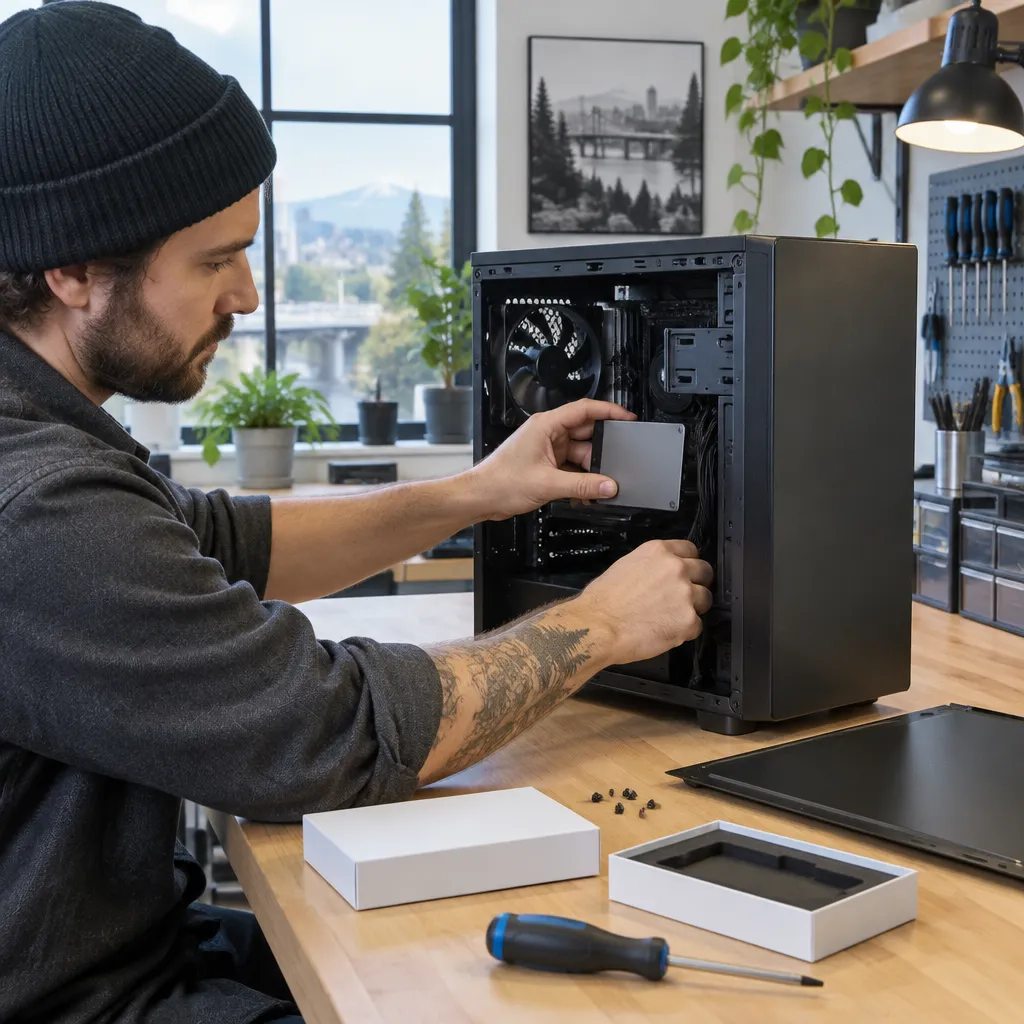
Too Many Programs Launching at Startup
Many programs add themselves to startup without asking. Update helpers, chat apps, and utilities can all launch with the computer, using memory before you open a single file. Turning off what you don’t need is one of the cheapest speed gains available, and it’s a standard part of a tune-up.
Full Storage and Older Hard Drives
When a drive is nearly full, the computer has less room to work, and it may slow down while it sorts through files. Older mechanical hard drives are a common culprit too. Community discussions about storage generally describe solid state drives as faster and quieter than hard drives, though they cost more per unit of storage. That speed gap is one reason an SSD upgrade can make a noticeable difference.
Pro tip: Before you buy anything, check how much free space the drive has and how much memory is in use during a slow moment. Those two numbers tell you a lot about what the machine really needs.
Aging Memory and Software Updates
Software keeps getting heavier. An application that ran fine on an older machine may need more memory today. When a computer runs close to its memory limit, every task starts to stall. Failed updates and leftover files from old installs can drag things down too, and those problems rarely fix themselves.
Tune-Up, SSD Upgrade, or New Computer?
Here’s the honest part. Not every slow computer needs the same fix, and not every slow computer is worth saving. Picking the right path is the difference between a modest bill and money spent on the wrong thing.
When a Computer Tune-Up Is Enough
A tune-up covers cleaning out clutter, trimming startup programs, checking the system for problems, and making sure the machine runs as efficiently as it can. If your computer is still fairly capable and only drags after months of use, a tune-up is often the right first step. It’s usually the most affordable option we recommend.
When an SSD Upgrade Makes Sense
If your computer still uses a traditional hard drive and otherwise runs well, an SSD upgrade can give it a second life. SSD drive cloning and replacement lets us move your files and system to a faster drive, so you keep your setup without starting from scratch. For many older office machines, that one change makes everyday tasks feel new again.
When Replacing the Machine Is Smarter
Sometimes the honest answer is a new computer. If the processor is very old, the memory can’t be upgraded, or repairs keep stacking up, paying for upgrades can cost more than a replacement would. We’d rather tell you that plainly than sell you fixes that won’t last.
The table below compares the three paths side by side, so you can see which one fits your situation.
Option | Best For | What It Addresses |
|---|---|---|
Computer Tune-Up | Computers that slow down over time but still run well | Startup clutter, background programs, and general cleanup |
SSD Upgrade | Machines with a traditional hard drive that otherwise work well | Slow file access, boot time, and storage speed |
New Computer | Hardware that can’t be upgraded or repaired economically | An outdated processor, limited memory, and repeated repair costs |
Remote Help and On-Site Visits
Not every problem needs a technician standing at your desk. Some fixes can be handled remotely, which often means less waiting and a lower bill. When a hands-on visit makes sense, we come to you, and you’ll know what to expect before the job starts.
When Remote Assistance Works Best
Remote assistance works well for slow startups, software settings, updates, and questions about how a program is set up. A technician can see your screen, make changes, and explain them as they go. For many small offices, that means the fix happens without waiting on a visit.
When an On-Site Visit Is the Better Choice
Some problems call for hands on the machine. Swapping a drive, cleaning out a tower, or working on several workstations at once is easier in person. Our On-Site Computer Repair service covers Portland, OR, the Portland Metro Area, and Gresham, OR, so businesses that need someone in the room can get it.
Either way, the goal is the same: the most cost-efficient fix that makes sense for you. We work on both PCs and Macs, so a mixed office isn’t a problem.
Pro tip: Save your open work and close any files you don’t need before a remote session starts. That keeps the session focused on the slowdown instead of file recovery.
Preventing the Slowdown Before It Starts
The easiest slowdown to fix is the one you catch early. A few simple habits can keep small problems from turning into weeks of frustration for your team.
A Simple Monthly Check
Set aside a few minutes each month to look at startup programs, free storage, and any pending updates. You don’t need to be a technician to do it. Noticing a slow change early makes it far easier to correct.

Backups and Data Transfers Before Changes
Before any upgrade or drive change, make sure your files are backed up and accounted for. File transfer services are useful when you move to a new machine, so your documents, settings, and folders come along without a scramble.
Scheduling Check-Ups on Your Terms
Regular tune-ups keep small problems from becoming big ones. A check-up during a slower month is much easier to fit in than an emergency visit during your busiest week.
Pro tip: Pick the one computer that gets the most complaints and watch it first. Fixing your worst machine often reveals patterns that help you care for the rest.
Need Help With Your Computer? I’m Steve, owner of Steve’s PC Repair. Whether your computer is running slowly, your printer won’t connect, or you need help setting up a new computer, I can help. I provide onsite service for homes and small businesses across the Portland metro area. Remote support is also available.
Frequently Asked Questions
How do I know if my computer is slow or just old?
Check whether the slowdown shows up at startup, in particular programs, or across everything. If a fresh restart and some cleanup bring it back to life, a tune-up may be enough. If it struggles with basic tasks even after cleaning, the hardware may be the limit.
How much time can a slow computer really cost a small business?
It depends on how many people use the machine and how often it stalls. Using the example above, eight people losing 15 minutes a day comes to about 500 hours a year. Your own numbers will differ, so a quick count gives you a better answer than a guess.
Is a tune-up worth it for a computer that’s only a few years old?
Often, yes. A tune-up is generally a lower-cost first step than replacing the machine, and it can show whether the problem is software related. If the computer still runs well otherwise, that’s usually the most sensible place to start.
Can slow computers be fixed remotely?
Many software and settings issues can be handled through remote assistance, which often saves time and money. Hardware problems, like a failing drive or a machine clogged with dust, usually need an on-site visit.
Do you work on Macs as well as PCs?
Yes. We work on both PCs and Macs.
How do I request a quote or book a visit?
To schedule a visit, call (503) 850-0200 or request an appointment online.
What slowdown has cost your team the most time, and how did you handle it?
