
Most computer trouble in the Portland Metro Area does not start in January. It starts in October, when dust packed into fans over the summer begins to choke airflow, updates pile up in the background, and a laptop left in a cold car starts acting strange. A computer tune-up in Portland before the wet, cold months arrive catches these problems while they are still cheap to fix. This fall checklist covers what we check on every visit, what you can do yourself in an hour, and which warning signs mean it is time to call a technician instead of waiting it out.
Table of Contents
- Quick Takeaways
- Why Fall Is the Right Time for a Portland Tune-Up
- Clean Out Heat and Dust Before the Cold Sets In
- Software Checks: Updates, Startup Programs, and Malware
- Storage Health and Backups Before Storm Season
- Cold-Weather Habits for Laptops and Phones
- When a Tune-Up Is Not Enough
- Frequently Asked Questions
- References
Quick Takeaways
Key Insight
Explanation
Dust is the most common cause of a fall slowdown
Clogged intake filters and heat sinks force fans to work harder, and the processor throttles itself when temperatures climb. A slow machine may be overheating rather than short on memory.
Let a cold laptop reach room temperature before powering it on
Condensation forms as the machine warms up. Booting a wet computer can short electrical connections, so wait until it is fully dry.
Never leave a laptop in a cold car for more than an hour
Published cold-weather care guidance warns that freezing can damage internal parts, even inside a padded or insulated case.
Back up before the first winter storm
Power outages can lead to data loss. A current backup turns a bad evening into an inconvenience instead of a disaster.
Check any drive that clicks, stalls, or throws read errors now
Failing drives rarely recover on their own. A fall diagnostic is far cheaper than a dead drive in the middle of a deadline.
Many fall fixes can be handled remotely
Updates, startup cleanup, malware scans, and router settings often do not require a technician in your home, which keeps costs down.
Why Fall Is the Right Time for a Portland Tune-Up
Winter does not break most computers on its own. It exposes the weak spots that were already there, like a fan running sluggishly or a drive that has been quietly throwing errors since summer. Portland's wet, gray months add their own stress, with damp bags, cold cars, and occasional power flickers during windstorms.
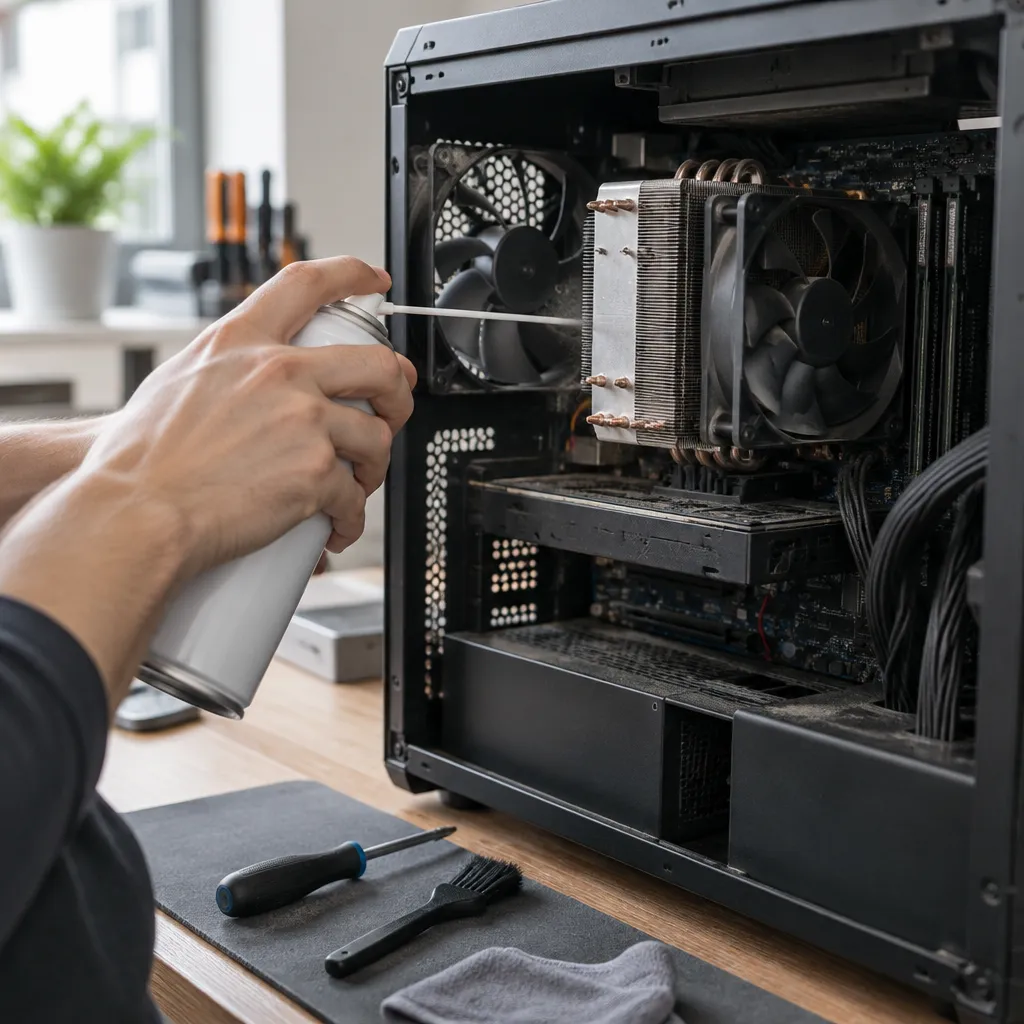
The advantage of a fall visit is timing. A machine checked in October usually gets a cleaner, cheaper fix than one that dies during the first cold snap, when you are working on a deadline and everything else in your week is slipping. A tune-up is not a full rebuild. It is a structured pass over heat, software, storage, and habits that tells you whether the computer is worth keeping for another year.
What a Fall Tune-Up Actually Covers
A proper tune-up starts with a diagnostic, not a random list of cleaning chores. We check temperatures under load, look at startup behavior, review pending updates, scan for malware, and confirm that the backup you think you have is actually running. Each finding gets a plain-language note about whether it needs action now, can wait until spring, or is not worth fixing at all.
That last category matters. Honest assessment means telling you when an aging laptop with a worn battery and a cracked hinge will cost more to keep alive than it is worth. If the battery is the main issue, our guide on when to replace a laptop battery explains the signs to watch for.
When Waiting Costs More
Problems that wait tend to compound. A slightly warm machine runs hotter, which wears components faster, and a slow drive can become an unbootable drive at the worst possible moment. If your computer already takes forever to start, our guide on whether your computer is due for a tune-up is a useful place to compare symptoms.
Most fall repairs are inexpensive because nothing has failed yet. The same work done during a winter emergency costs more in time, stress, and lost files.
Clean Out Heat and Dust Before the Cold Sets In
Dust is the most common cause of fall slowdowns we see. Fans pull air through the case or laptop body all summer, and by October the intake filters and heat sinks are carrying a layer of lint, pet hair, and fine grit. The fans then spin harder to move less air, and the processor slows itself down to stay within safe temperatures.
Desktop Towers and Intake Filters
On a desktop, start with the intake filters on the front and bottom of the case. Remove them, vacuum or rinse them, and let them dry completely before reinstalling. Next, clean the heat sink and fans, and check that every fan spins freely and no cable is pressed against the blades.
Pro tip: Shut the computer down, unplug it, and wait before opening a desktop case. Hold fan blades still while using compressed air, because a fan spun past its safe speed can be damaged.
Laptop Vents and Keyboards
Laptops are harder because the vents are small and the dust packs deeper. Use short bursts of compressed air, hold the can upright, and keep the fan still so it does not spin faster than it should. Pay attention to the area under the keyboard and the palm rest, where crumbs and skin oil collect. If the laptop is still loud after cleaning, the fan or the thermal paste may need replacing, which is a job for a technician rather than the kitchen table.
Spotting Overheating Before It Becomes a Shutdown
A fall room feels cool, so a warm laptop on the couch seems fine. The problem shows up when the heat comes on or when you run a demanding program like a video call with a browser full of tabs. If the fans roar and the machine stutters during routine tasks, note when it happens and bring it in before it shuts down in the middle of your work.
Software Checks: Updates, Startup Programs, and Malware
Software problems often look like hardware problems. A computer that takes several minutes to reach the desktop is frequently running too many programs at login rather than failing. A fall check is the right time to sort this out, because you will still have time to test the result before you depend on the machine for holiday shopping, schoolwork, or early tax paperwork.
Installing Pending Updates Without Rushing
Install pending operating system updates on a day when you can spare an hour and restart without interruption. Save open files first, since most updates ask for a restart before they finish. Skipping updates for months is a mistake, because security patches close gaps that malware depends on.
Trimming Startup Programs
Startup programs are one of the most common causes of slow boots we fix. Many apps add themselves to the login list during installation and keep running even when you never open them. On Windows, review the startup tab in Task Manager. On a Mac, check Login Items in System Settings. Disable anything you do not recognize only after checking what it does, since some entries belong to printers, VPN tools, or security software.
Running a Malware Scan Before You Need One
Virus removal is more stressful when it happens in the middle of a crisis. A scheduled scan in the fall can catch adware and browser hijackers that drag machines down. If a computer shows pop-ups, unfamiliar toolbars, or a browser that redirects your searches, stop using it for online banking until it has been checked. Our virus removal and repair service covers both PCs and Macs, and we often handle the job remotely.
Pro tip: Restart at least once a week. Many updates and background processes do not fully finish until the machine reboots, and a computer left running for weeks is a common reason for sluggish performance.
Storage Health and Backups Before Storm Season
Storage is where a fall tune-up matters most, because a failing drive gives little warning and often fails at the worst time. A hard drive that dies during a power flicker can take family photos, tax records, and the only copy of a work project with it. Checking drive health now costs far less than recovering data later.

Warning Signs Your Drive Is Failing
Clicking, grinding, repeated freezes when opening files, and error messages about bad sectors are the usual signs. Our guide to warning signs your hard drive is about to fail covers these symptoms in more detail. Do not keep running a drive that shows them and hope it lasts through winter. Back up first, then have it tested.
Backups That Survive a Power Outage
A backup that runs only when the computer is awake and online is weaker than it looks. Use an external drive or a cloud service, and confirm the date of the last successful backup instead of assuming it ran. Before a forecast storm, save your work, close programs, and shut the machine down rather than leaving it in sleep mode.
When an SSD Upgrade Makes Sense
If your computer still uses a traditional hard drive and feels sluggish, an SSD upgrade is often the most cost-efficient way to make it feel new again. Our article on turning an old computer into a new one with an SSD explains the process. We also offer SSD drive cloning and replacement, so your files and operating system can move over without a full reinstall.
Pro tip: Test your backup by restoring one file to a different folder. A backup you have never opened is a guess, not protection.
Cold-Weather Habits for Laptops and Phones
Maintenance only goes so far if a device spends winter in a freezing car or a damp backpack. Published cold-weather care guidance agrees on the basics: avoid extreme cold, let devices warm up gradually, and keep them dry. These habits cost nothing and prevent the kind of damage that shows up later as a dead battery or a keyboard that stops responding.
Cars, Bags, and the One-Hour Rule
Do not leave a laptop in a vehicle in cold weather for more than an hour. Cold-weather guidance warns that the machine can freeze and that parts can be damaged, even inside a padded or insulated case. When you carry a laptop from a cold car into a warm office, let it reach room temperature before powering it on. If it was in sleep mode, avoid opening it until it has warmed, since opening the lid can wake it.
Phones Outdoors and Water Exposure
Lithium-ion batteries are sensitive to extreme cold. Turning a phone off or using power save mode while you are outside helps prevent rapid battery drain and unexpected behavior. A waterproof pouch keeps out moisture, but it does not protect against freezing, so keep the phone in an inside coat pocket where body heat helps.
Why Heaters and Hair Dryers Are the Wrong Fix
When a laptop feels cold, the instinct is to warm it with a hair dryer, mug warmer, or pocket warmer. Do not do this. These devices are not designed for electronics, and they can heat the wrong part of the machine or cause it to overheat and damage internal components. Let it warm up slowly at room temperature instead.
If a laptop has been left wet from snow or rain, let it dry naturally and hold off on powering it on. Turning on a wet machine can short electrical connections, and a device that looks dry on the outside may still hold moisture inside.
When a Tune-Up Is Not Enough
A tune-up is the right answer for most home computers, but not all of them. If a machine cannot run a current operating system, has a drive that fails testing, or needs repairs that cost more than the computer is worth, the honest move is to say so. We would rather tell you to stop investing in an old machine than sell you a repair that fails in January.

Signs It Is Time to Replace Rather Than Repair
Watch for repeated crashes that return after cleaning and updates, a battery that drains in minutes, and storage that fails a second time. When the cost of the fix approaches the value of a replacement, replacing the machine is usually the better decision. Move your files first through a clone or transfer so the change is painless. Our PC upgrade and file transfer services handle that move for you.
Comparing Your Fall Options
Three approaches cover most situations, and the right one depends on the symptom rather than the calendar.
Approach
Best For
Trade-off
Self-service checklist
Dust removal, pending updates, and a weekly restart routine
Misses failing drives, hardware faults, and settings problems you cannot see
Remote tune-up session
Software slowdowns, malware, startup clutter, and router or settings issues
Cannot physically clean fans or replace a drive
On-site tune-up visit
Desktops, hardware symptoms, drive replacement, and machines that will not start
Requires scheduling a visit, so it is best booked before the cold weather peaks
For most home computers, we start with remote support when the problem is software, which keeps costs down. Desktops and machines with hardware symptoms usually need an on-site visit. You get a quote before any work begins, with no surprise charges, and you can request one through our Free Quote button or by calling (503) 850-0200.
Frequently Asked Questions
How often should I tune up a computer in Portland?
Once a year, in the fall, is enough for most home machines. Run a quick check every few months if you have pets, a dusty room, or a laptop you carry outdoors, since those conditions fill vents faster.
Is a tune-up worth it for an older computer?
Usually yes, as long as the drive tests healthy and the system can still run current updates. If the machine cannot update or the storage is failing, replacement is typically the smarter spend, and we will say so during the assessment.
Can a computer tune-up be done remotely?
Software-based work, including update checks, startup cleanup, malware scans, and some settings fixes, can often be done through remote support. Dust removal, drive replacement, and hardware repairs need someone to be physically present.
Do you work on Macs as well as PCs?
Yes, we work on both PCs and Macs. The steps differ a little between platforms, especially for startup items and updates, but the goals of cleaning, checking storage, and protecting data are the same.
What should I do if my laptop was left in the snow?
Bring it indoors and let it reach room temperature without powering it on. If it looks wet or you see condensation, let it dry naturally, and call us before turning it on if you are unsure.
How much does a computer tune-up cost?
Our pricing is straightforward and affordable, and you know what to expect before the job starts. Request a Free Quote or call (503) 850-0200 to discuss your machine, and we will suggest the most cost-efficient fix for your situation.
Tell us what your computer has been doing this fall, whether that is slow starts, loud fans, or a drive that clicks, and we will tell you honestly whether it needs a tune-up or something more.
References
- Cold weather computer care tips on freezing, warming up, and condensation risks for laptops
- Winter safety guidance on protecting phones and laptops from cold, outages, and backup gaps
